
Connect to Dify
Install Dify
If you haven't installed Dify yet, please refer to the Dify Installation Documentation to install it.
Configure Dify in AstrBot
In the WebUI, open Config, select the profile to edit, and open AI. Click More actions (…) beside the heading → Change Execution Mode, select Dify, read and check the reset acknowledgement, then click Use This Mode. Make sure Enable AI is on, then enter the connection settings on this page. Switching resets the current mode's configuration; see Agent Runner.
In Dify, one API Key uniquely corresponds to one Dify application. Therefore, you can configure different API keys in separate profiles to connect multiple Dify applications.
AstrBot provides these Application Type options:
- chat
- chatflow
- agent
- workflow
TIP
Please ensure that the APP type you set in AstrBot matches the application type created in Dify. 
Chat and Agent Applications
Create your Dify Chat and Agent application keys as shown in the figure below:
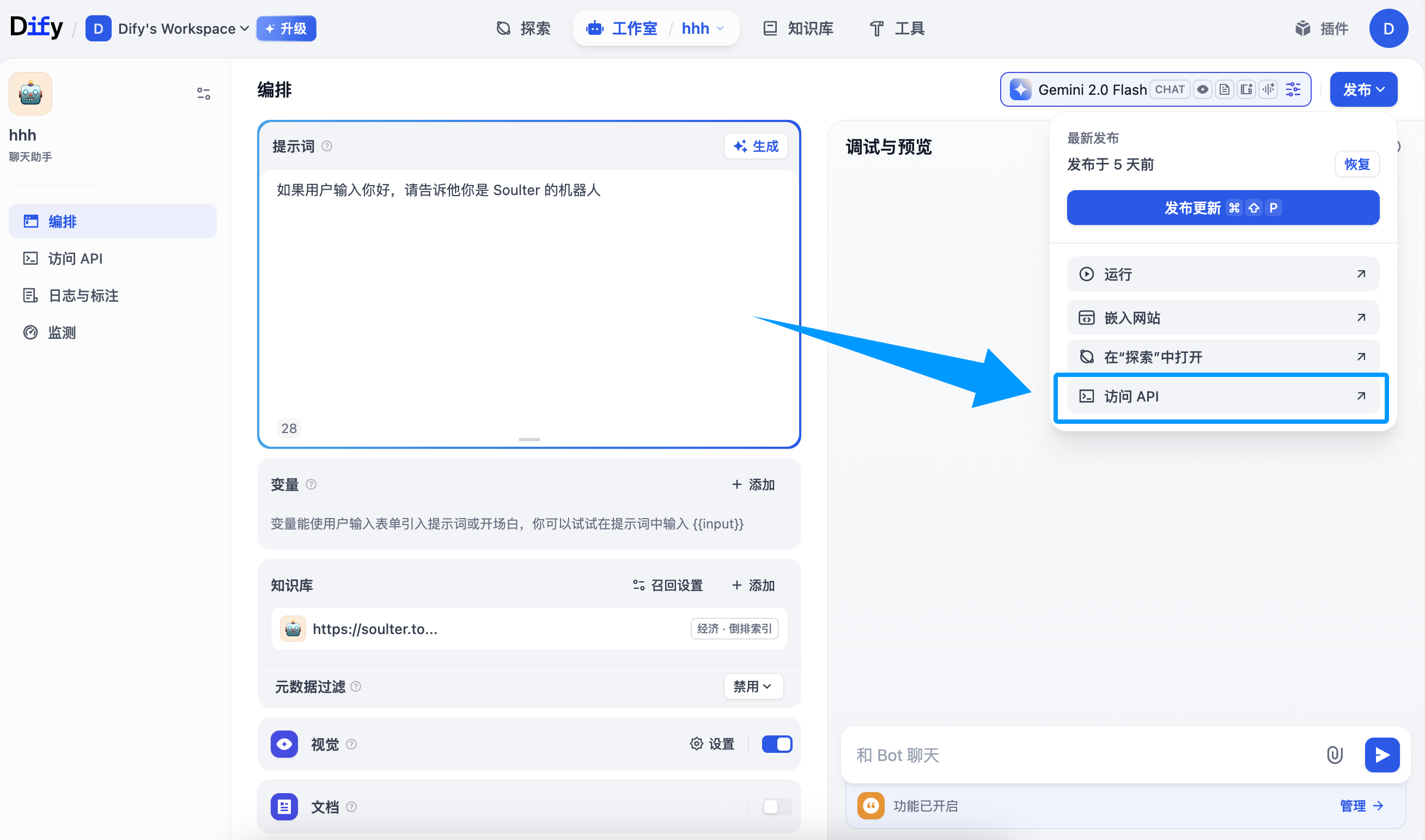
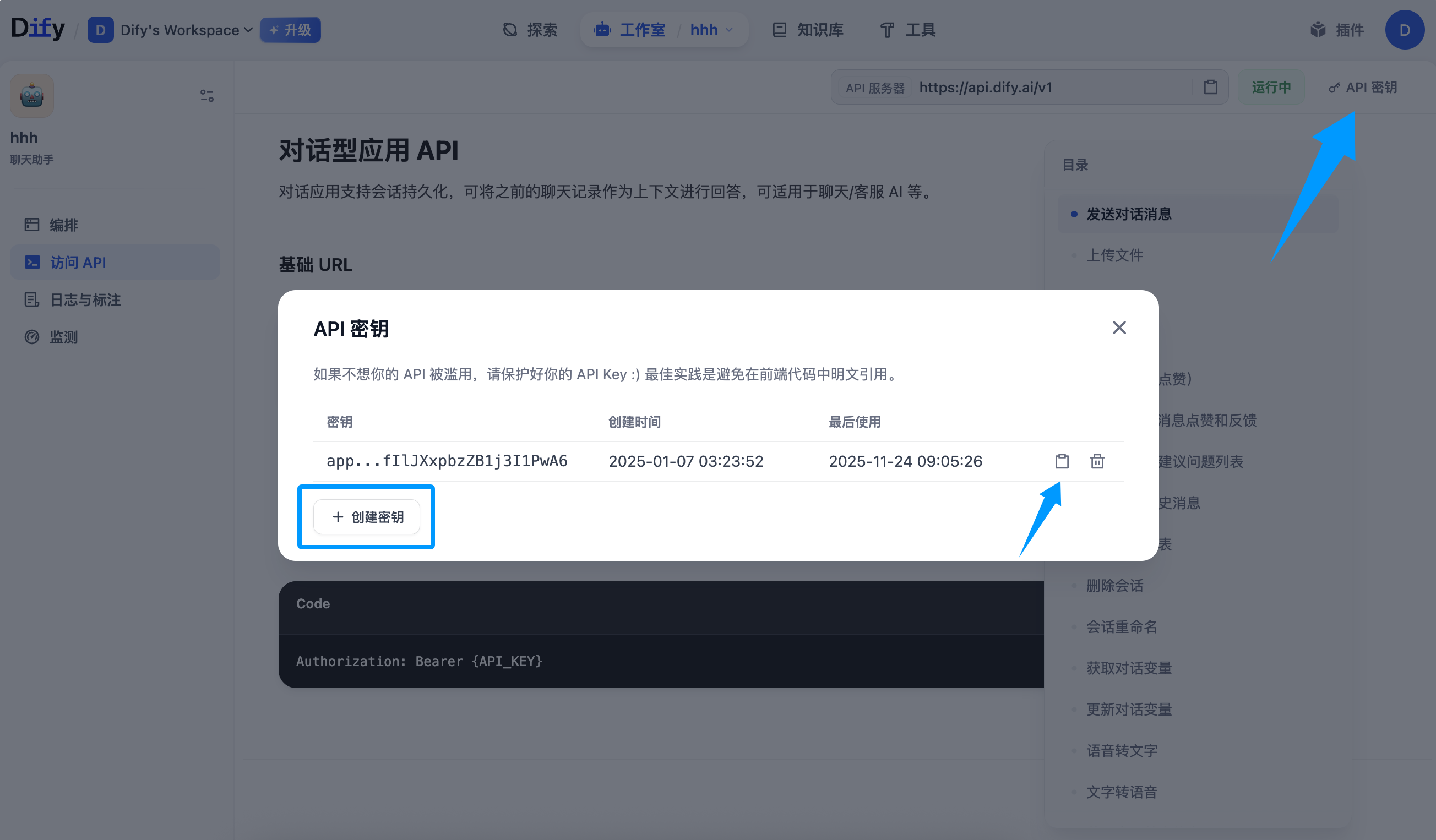
Copy the key and paste it into the API Key field in the configuration, then click Save Configuration.
Workflow Applications
Configure Input and Output Variable Names
Workflow applications receive input variables, execute the workflow, and output the results.
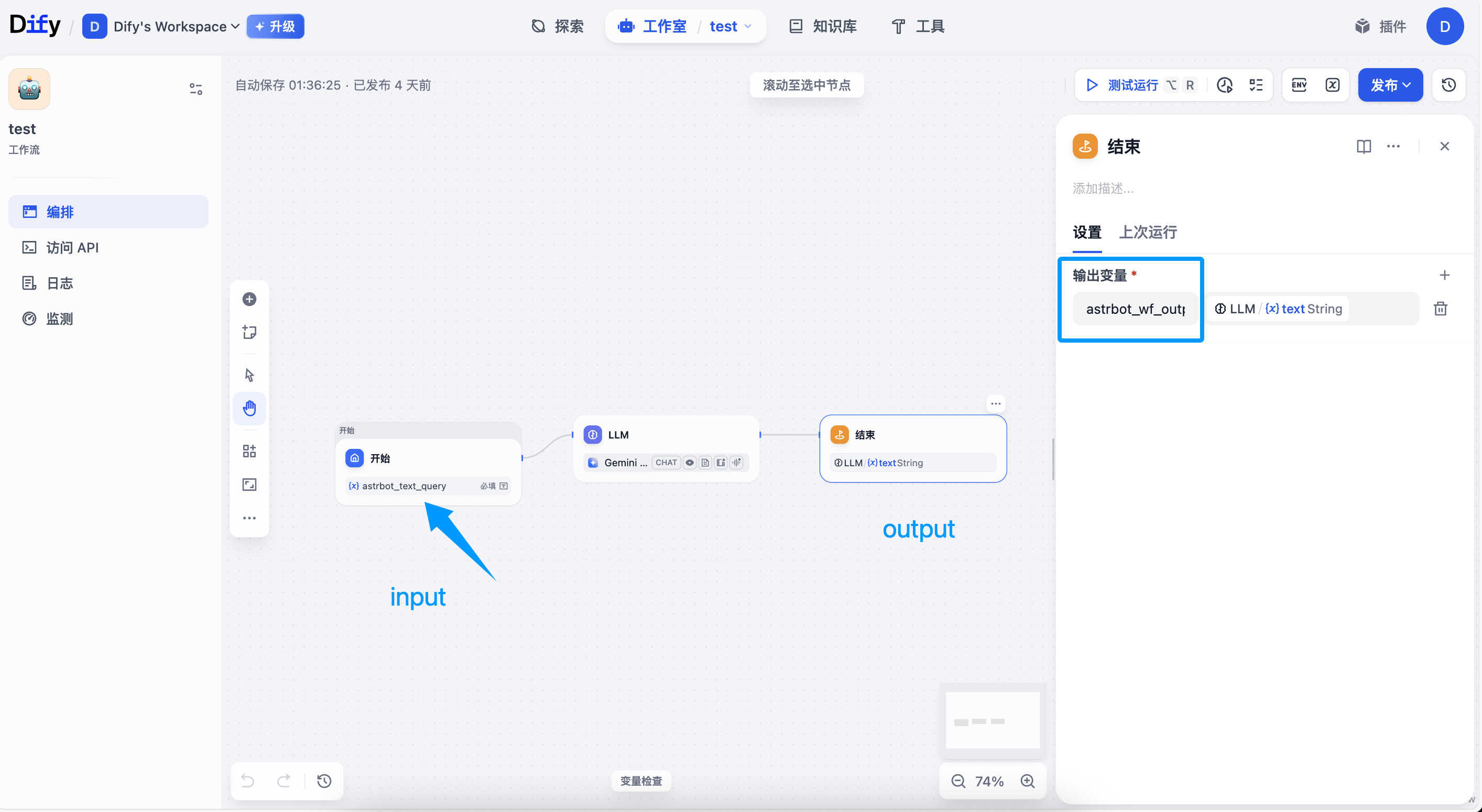
For Workflow applications, AstrBot will attach two variables with each request:
astrbot_text_query: Input variable name. This is the text content entered by the user.astrbot_session_id: Session ID
You can customize the input variable name in the configuration, which is the Prompt Input Variable field in the Dify settings.
You need to modify the input variable name of your Workflow to adapt to AstrBot's input.
Finally, the Workflow will output a result. You can customize the variable name of this result, which is the Workflow Output Variable field in the Dify settings, with a default value of astrbot_wf_output. You need to configure this variable name in the output node of the Dify Workflow, otherwise AstrBot cannot parse it correctly.
Create API Key
Create your Dify Workflow application's API Key as shown in the figure below:
Click the Publish button in the upper right corner -> Access API -> click API Key in the upper right corner -> Create Key, then copy the API Key.
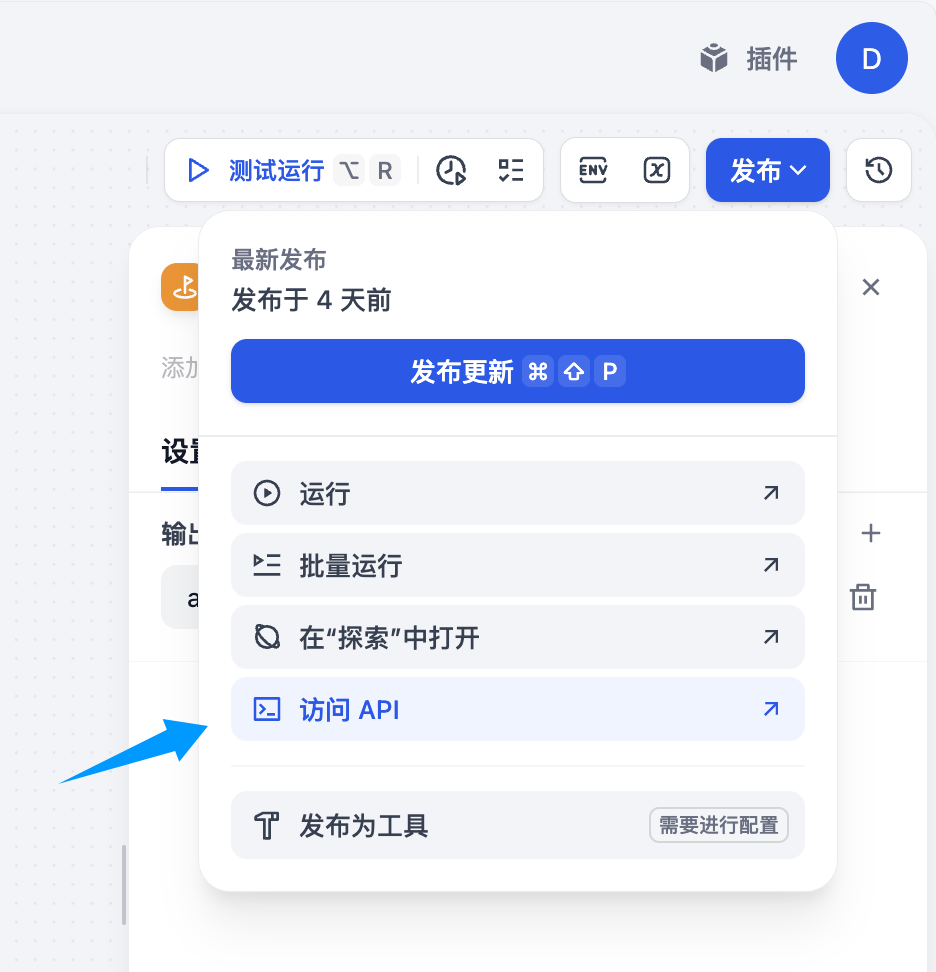
Copy the key and paste it into the API Key field in the configuration, then click Save Configuration.
Save the Configuration
When all fields are complete, click Save Configuration at the bottom right. This profile uses the selected execution mode and connection settings directly; no separate runner provider or provider ID selection is needed.
Appendix: Dynamically Set Workflow Input Variables During Chat (Optional)
You can use the /set command to dynamically set input variables, as shown in the figure below:
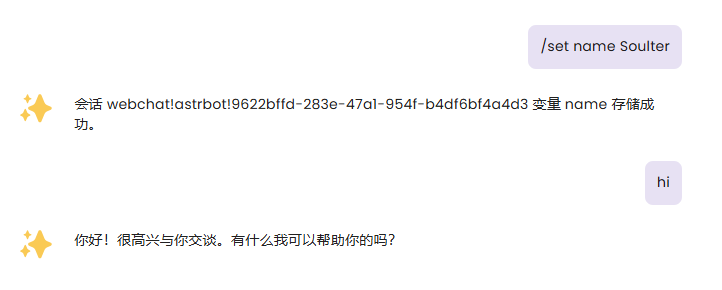
After setting variables, AstrBot will attach the variables you set in the next request to Dify, flexibly adapting to your Workflow.

Of course, you can use the /unset command to cancel the variables you set.
Variables are permanently valid in the current session.